

Your Paysera Visa Signature card is already on your iPhone.
Apple Pay is an easy, secure, and private way to pay, now available on your Apple devices.
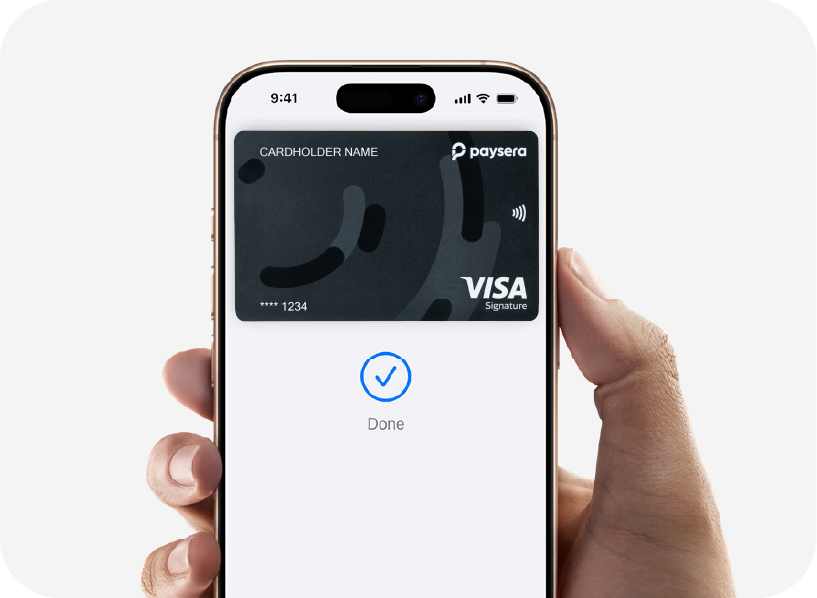
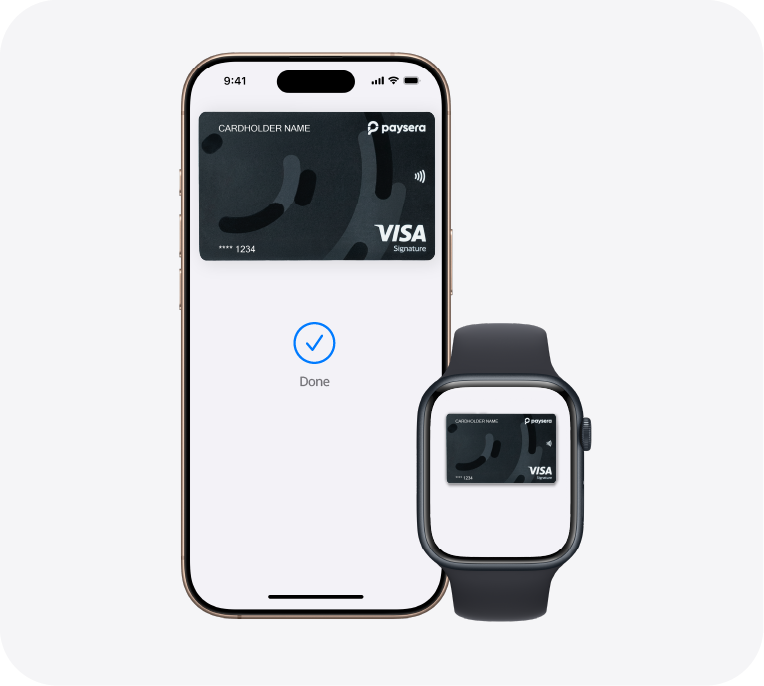
Easy
With Apple Pay, you can pay quickly and easily using your Paysera Visa Signature card directly from your iPhone or Apple Watch.
Secure
Apple Pay uses Face ID or Touch ID to authorize payments, so only you can make purchases.
Private
Your Paysera Visa Signature card number is never saved on your device or on Apple’s servers, and it is never shared with merchants when you make a payment.
Apple Pay
Simple, Secure, and Private Payments
Apple Pay is an easy, secure, and private way to pay—whether you're shopping in stores, online, or in your favorite apps. Your Paysera Visa Signature card is now available on your iPhone, Apple Watch, iPad, and Mac
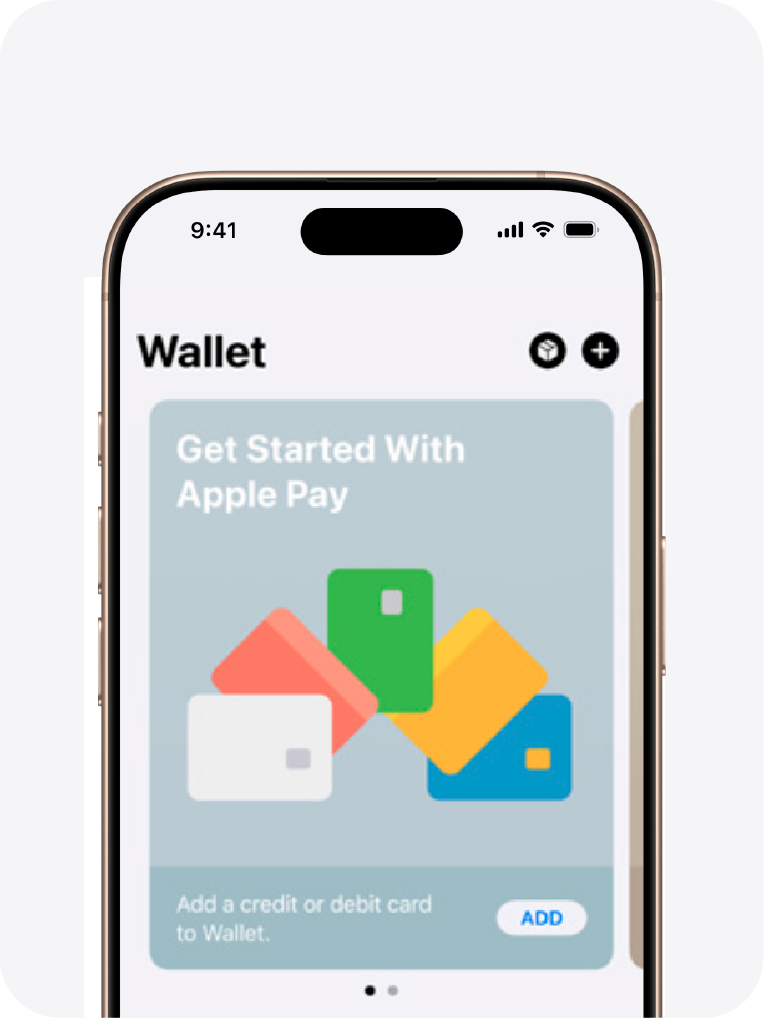
Add Your Paysera Visa Signature Card to Apple Pay in 3 Easy Steps

Open the Paysera Super App
Open the Paysera Super App to get started and follow the on-screen instructions.

Or Add It Directly in Apple Wallet
On your iPhone, open Apple Wallet, tap the (+) button, select "Debit or Credit Card," and follow the prompts.

You're All Set
Your Paysera Visa Signature card is now ready to use with Apple Pay. Pay in stores, online, or in your favorite apps.
Paying with Apple Pay is Easy
In Store with iPhone
Double-Click
Double-click the side button on your iPhone.
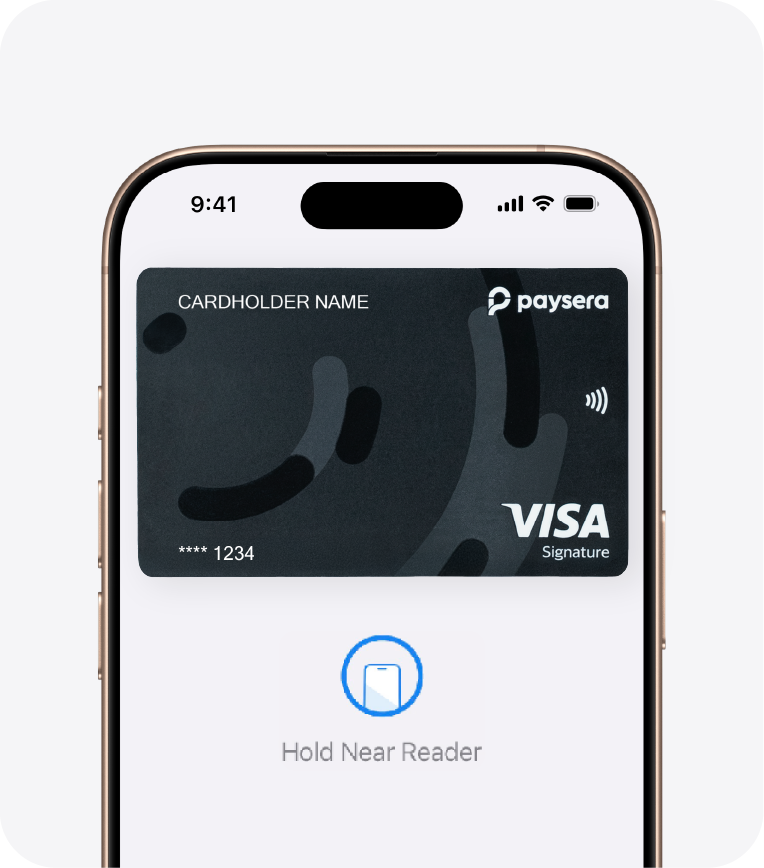
Hold Near Reader
Hold your iPhone near the contactless payment terminal.
Authenticate
Confirm your identity using Face ID, Touch ID, or your passcode.

Payment Complete
Done
With Apple Watch
Simply double-click the side button, then hold your Apple Watch near the contactless payment terminal to complete your payment.
Shopping Online and In Apps
Tap the Apple Pay Button
On the checkout page, tap the Apple Pay button.
Review Your Details
Check your billing, shipping, and payment information.
Authenticate
Confirm your payment using Face ID, Touch ID, or your passcode.
With Apple Pay, information such as your name and shipping address is filled in automatically at checkout, making the payment process faster and more convenient than ever.
Pay Wherever You Already Shop

| Where | How |
|---|---|
|
In store |
Wherever you see the Apple Pay or contactless symbol, simply hold your iPhone or Apple Watch near the payment terminal. |
|
Online |
Look for the Apple Pay button on any website where Apple Pay is accepted. |
|
App |
Tap the Apple Pay button and confirm your payment with a single touch using Face ID. |
Apple Pay
Created with Security and Privacy
Apple Pay is built to help keep your payments secure and your personal information private by using the built-in security features of your Apple devices.
Every transaction requires authentication with Face ID, Touch ID, or your device passcode on iPhone, iPad, or Mac. On Apple Watch, simply double-click the side button to authorize your payment. These security features ensure that only you can approve purchases made with Apple Pay.
Your actual card number is never stored on your device or on Apple's servers. When you make a payment, Apple does not share your card number with merchants, helping protect your payment information and reduce the risk of fraud.
Card number - Secured
Your Paysera Visa Signature card number is never stored on your device or on Apple’s servers.
Not shared with the merchant
When you make a payment, Apple does not share your card number with the merchant — your data is further protected.
Private
Face ID or Touch ID: ensuring that only you can authorize payments.
Benefits of Using Your Paysera Visa Signature Card with Apple Pay
When you use your Paysera Visa Signature card with Apple Pay, you enjoy all the same benefits as when paying with your physical card.
Ready to get started? Add your card now
To use Apple Pay, you need a supported card from a participating card issuer. Apple Pay is not available in all markets. Features may change. For information about Apple Pay availability, please contact Paysera.
Apple Pay services are provided by Apple Payments Services LLC, a subsidiary of Apple Inc. Apple Inc. and Apple Payments Services LLC are not banks. The card used with Apple Pay is offered by the card issuer.
TM and © 2025 Apple Inc. All rights reserved.